 By Saurav Mehra
 A few years ago, changing a SIM card was simple. You opened the SIM tray, removed the tiny plastic card, inserted a new one and waited for network bars. But today, smartphones are becoming smarter, slimmer and more digital. Many new iPhones, Samsung phones, Google Pixel devices, Motorola, Vivo, Oppo and OnePlus models now support something called eSIM. For Indian users, especially Airtel customers, this can be very useful—but also a little confusing at first.
Many people hear “eSIM” and immediately wonder: Is it a separate SIM? Will my number change? Can I use WhatsApp and UPI normally? What happens if my phone is lost? Will my physical SIM stop working? These are practical questions because in India, one mobile number is connected to everything—bank OTPs, UPI, Aadhaar services, WhatsApp, office calls, family groups and online shopping.
The good news is that eSIM is not complicated once you understand the process. It works like a normal SIM, but instead of inserting a physical card, you download a digital SIM profile into your phone. Airtel allows eligible users with supported devices to switch to eSIM and use their existing number digitally. But because your mobile number is important, activation must be done carefully and securely.
What Is an eSIM?
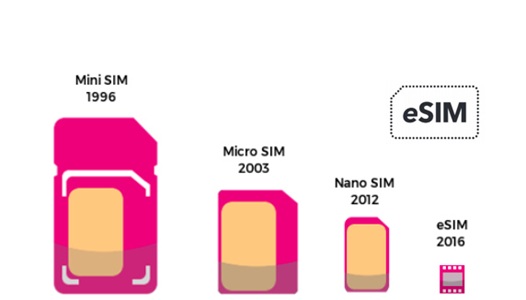
eSIM means embedded SIM. It is a digital SIM built inside your smartphone or smartwatch. Unlike a physical SIM card, you do not need to insert or remove anything from the SIM tray.
When you activate eSIM, your telecom operator sends a digital SIM profile to your device. Once that profile is downloaded and enabled, your phone connects to the mobile network just like it does with a physical SIM.
Your mobile number remains the same if you are converting your existing Airtel physical SIM to eSIM. Your plan, recharge, calls, mobile data and SMS services continue as per your Airtel connection.
How Is eSIM Different From a Physical SIM?
A physical SIM is a removable plastic card. An eSIM is built into the phone. A physical SIM can be taken out and inserted into another phone. An eSIM cannot be removed physically; it has to be transferred, deleted or reactivated through proper digital steps.
This makes eSIM cleaner and more convenient, but it also means you should be careful while changing phones. You cannot simply remove it and put it into another device.
For daily usage, both work almost the same. You can make calls, use mobile data, send SMS, receive OTPs and use UPI normally once eSIM is active.
Why eSIM Is Useful for Indian Users
eSIM is helpful if you want to use two numbers on one phone. For example, you can keep one physical SIM and one eSIM together if your device supports dual SIM usage. Many people use one number for personal life and another for office or business.
It is also useful for people who travel internationally. Some users keep their Indian Airtel number active on eSIM and use another SIM or travel eSIM for data abroad.
eSIM also reduces the need to handle small SIM cards, SIM ejector pins and SIM trays. If your phone has a damaged SIM tray, eSIM can be convenient if the device supports it.
Does Airtel Support eSIM?
Yes, Airtel supports eSIM for eligible smartphones and smartwatches. Airtel eSIM works on supported devices from brands such as Apple, Samsung, Google Pixel, Motorola, Vivo, Oppo and OnePlus, depending on model compatibility.
Before starting the process, check whether your exact phone model supports eSIM. Do not assume support only because your phone is expensive. Some premium phones support it, some mid-range phones support it, and some phones do not.
You can check eSIM support in your phone settings, on the brand’s official product page, or by dialing *#06# and checking whether an EID number appears. If your phone shows a 32-digit EID, it usually indicates eSIM support.
Things to Keep Ready Before Airtel eSIM Activation
Before activating Airtel eSIM, keep your phone charged and connected to Wi-Fi or mobile data. Make sure you have the Airtel App installed and logged in with the Airtel number you want to convert.
Keep your registered Airtel mobile number active because OTP verification is needed. Also make sure your device’s software is updated, especially if you are using a newer iPhone or Android phone.
Most importantly, do not share your EID, OTP or QR code with anyone. These details are linked to your mobile number and should be treated as sensitive.
How to Activate Airtel eSIM Through Airtel App
Airtel’s current eSIM process is app-based and user-friendly. Open the Airtel App and log in with the Airtel number you want to upgrade to eSIM.
Go to the Home page and look for the shortcut or option related to “Upgrade to eSIM.” Start the eSIM request from there. The app may ask whether you want eSIM for the same device or another device. Choose carefully.
If required, enter your device’s 32-digit EID number. You can find the EID by dialing *#06# or by going to the About section in your phone settings.
After submitting the request, you will receive an OTP on your registered Airtel number. Enter the OTP correctly to verify the request.
Airtel Call Verification Step
After OTP verification, Airtel may complete call verification. You may receive a verification call after submitting the eSIM request. You need to confirm your consent during this call.
Do not ignore this step. If consent is not completed, your eSIM request may not move forward. Keep your phone available and answer the verification call carefully.
Once verification is done, your eSIM request is submitted and becomes ready for configuration on your device.
How to Configure Airtel eSIM on iPhone
After submitting the Airtel eSIM request, connect your iPhone to Wi-Fi or mobile data. You may receive a notification saying your mobile plan is ready to be installed.
Tap the notification and follow the on-screen steps. If you do not see the notification, go to Settings, then Mobile Service or Cellular, and look for the option to add or finish setting up the mobile plan.
Follow the prompts and complete the eSIM installation. Once the profile is downloaded and active, restart your iPhone if needed. After the eSIM starts working, you can remove the physical SIM if you converted the same Airtel number from physical SIM to eSIM.
How to Configure Airtel eSIM on Samsung Phones
On Samsung phones, first make sure your Airtel eSIM request has already been submitted through the Airtel App.
Connect the phone to Wi-Fi or mobile data. Go to Settings, then Connections, then SIM Manager. Tap Add eSIM and follow the steps shown on the screen.
Once the eSIM profile is downloaded, enable it. If you are converting from physical SIM to eSIM, remove the physical SIM only after the eSIM starts working properly.
How to Configure Airtel eSIM on Google Pixel and Motorola
For Google Pixel and many Motorola phones, connect the device to Wi-Fi or mobile data. Open Settings, go to Network & Internet and tap the plus sign near mobile network.
Choose the option to download a SIM or add eSIM. Follow the on-screen instructions to activate your Airtel eSIM profile.
After setup, check whether Airtel network bars appear. Test calling, mobile data and SMS after activation is complete.
How to Configure Airtel eSIM on Vivo, Oppo and OnePlus
On Vivo phones, the eSIM option may be available under SIM card and mobile network settings. Tap eSIM, then add eSIM and follow the instructions.
On Oppo and OnePlus phones, go to Mobile Network settings, find the eSIM option, turn it on and continue with the activation steps.
Menu names may differ slightly depending on software version, but the basic idea is the same: submit the request through Airtel App first, then download and enable the eSIM profile from phone settings.
How Long Does Airtel eSIM Activation Take?
After the eSIM profile is downloaded and enabled, activation may happen soon, but Airtel mentions that it can take up to around two hours after profile download in some cases.
You should configure the eSIM within the given time window after initiating the request. If you delay too long, the request may get cancelled and you may have to start again.
During the process, do not repeatedly delete, restart or change settings unless instructed. Let the activation complete properly.
Important: SMS Services May Be Barred Temporarily
After converting to eSIM, incoming and outgoing SMS services may remain barred for a limited period, including OTP-related SMS. This is important for Indian users because banking, UPI, Aadhaar, WhatsApp login and many apps depend on OTP.
Plan your activation at a time when you do not urgently need OTPs for banking or important work. Avoid starting eSIM activation just before travel, payment deadlines, exam form submission, office verification or bank-related tasks.
Do Not Delete Your eSIM Profile Casually
One common mistake is deleting the eSIM profile from phone settings while trying to fix network issues. Do not do this casually.
If you delete the eSIM profile, your Airtel number may stop working on that device, and you may need support or reactivation. Deleting eSIM is not like turning mobile data off. It removes the digital SIM profile from the phone.
If the network is not working, first try restarting the phone, checking mobile data settings, enabling the eSIM line and contacting Airtel support before deleting anything.
Can You Transfer Airtel eSIM to a New Phone?
Yes, Airtel allows eSIM transfer, but the process must be done properly. For some iPhone-to-iPhone transfers, device-to-device transfer may be available if both phones meet requirements. For Android-to-iPhone, iPhone-to-Android or Android-to-Android transfers, Airtel’s app-based eSIM process may be used with the new device’s EID.
Do not sell, exchange or reset your old phone before transferring or securing your eSIM. Make sure your Airtel number is active on the new phone first.
If you are unsure, visit an Airtel store for help.
What If Your eSIM Phone Is Lost?
If your eSIM-activated phone is lost or stolen, act quickly. Since the SIM is digital, the thief cannot simply remove the SIM card like a physical SIM, but your number and apps may still be at risk if the phone is unlocked.
Use Android Find Hub or Apple Find My to lock or erase the device if needed. Contact Airtel or visit the nearest Airtel store for assistance with the lost eSIM device. Also secure your UPI apps, email, banking apps and passwords.
Is eSIM Safe?
eSIM is generally safe when activated correctly. It reduces the risk of someone physically removing your SIM card from the phone. This can be useful if your phone is stolen.
However, eSIM safety depends on your habits too. Keep a strong screen lock, do not share OTP or EID, avoid forwarding QR codes, and do not install unknown apps that ask for device permissions.
Your mobile number is connected to your financial life, so treat eSIM activation details like banking details.
Who Should Use Airtel eSIM?
Airtel eSIM is useful for people who have a supported phone, want dual SIM convenience, travel often, dislike handling physical SIM cards, use premium smartphones, or want a cleaner digital setup.
It is also useful for users with smartwatch cellular plans, depending on Airtel support and device compatibility.
However, if you frequently change phones, use older devices, or are not comfortable with digital setup steps, a physical SIM may feel simpler.
Practical Checklist Before Activating Airtel eSIM
Check phone compatibility. Keep Wi-Fi available. Update the Airtel App. Find your EID. Keep your Airtel number active for OTP. Complete call verification. Download the eSIM profile within the required time. Do not delete the eSIM profile after activation. Avoid starting the process when you urgently need OTPs.
If any step feels confusing, take help from Airtel support or visit an Airtel store instead of trying random online tricks.
FAQs
Q1. Will my Airtel number change after converting to eSIM?
No, your number does not change when you convert your existing Airtel physical SIM to eSIM. The same number works digitally after successful activation.
Q2. Can I use Airtel eSIM and another physical SIM together?
Yes, if your phone supports dual SIM with one eSIM and one physical SIM, you can use both. This is useful for keeping personal and work numbers on the same phone.
Q3. What should I do if Airtel eSIM is not activating?
Check internet connection, restart your phone, make sure the eSIM profile is downloaded and enabled, and verify that you completed OTP and call verification. Do not delete the eSIM profile casually. Contact Airtel support or visit an Airtel store if the issue continues.
Q4. Can I activate Airtel eSIM without visiting a store?
Many existing Airtel users can initiate eSIM activation through the Airtel App on supported devices. However, for a new eSIM connection or complicated cases, Airtel may ask you to visit a nearby Airtel store with valid ID proof.